What it does
Connections
- Saved sessions and folders, manual ordering and desktop shortcuts
- SSH2 with a built-in SSH engine and port forwarding, interactive SFTP, Telnet, RLogin, raw TCP, serial ports and local shells
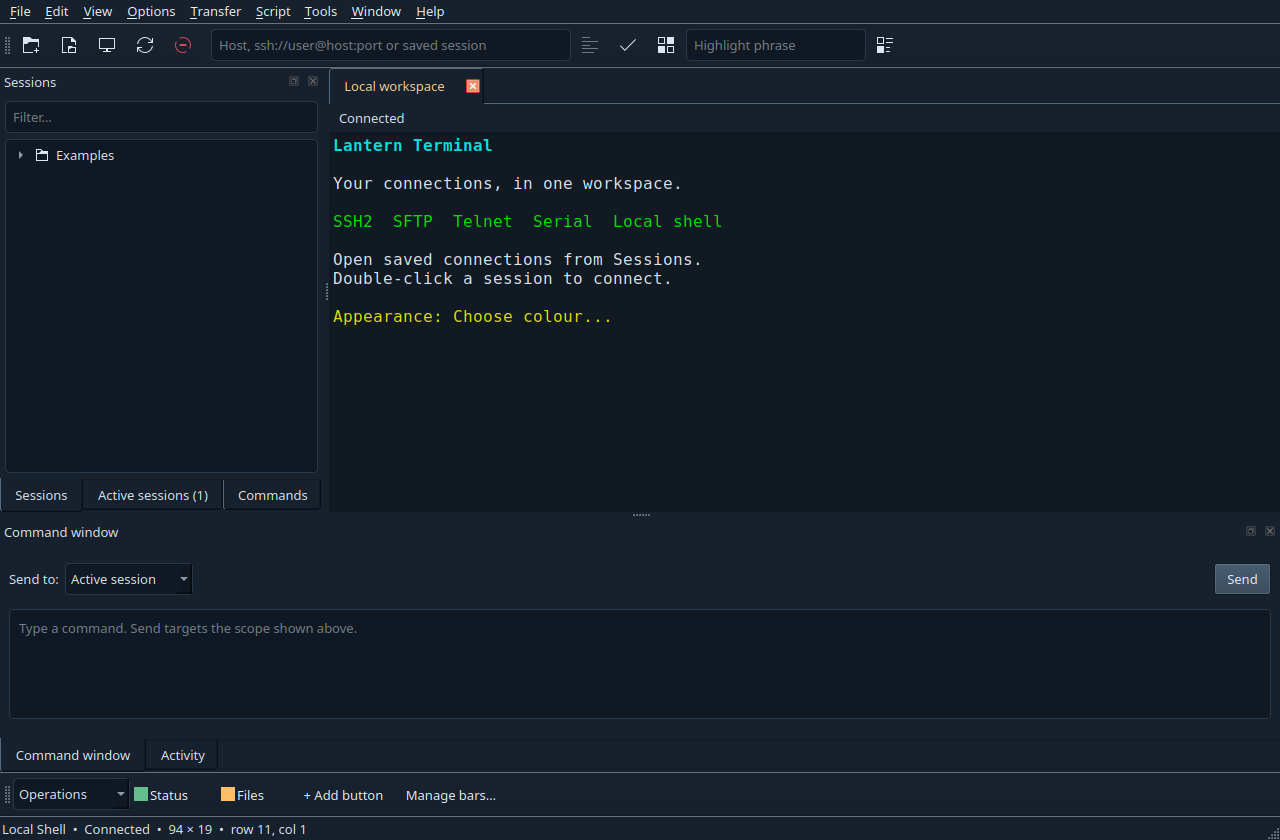
- BBS sessions: DOS-style ANSI-BBS screen with iCE colours, a built-in VGA font, Zmodem downloads and uploads, and SyncTERM BBS list import
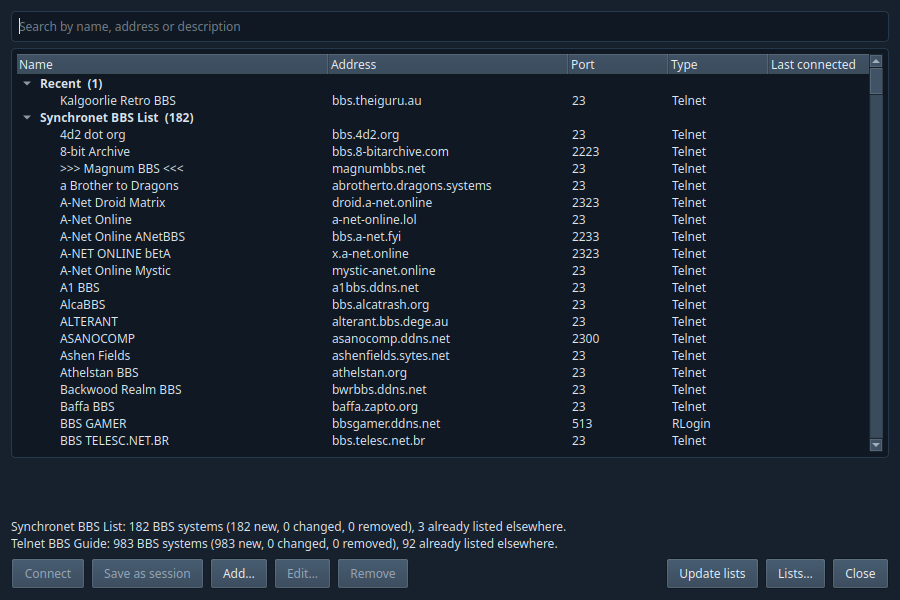
- A BBS Directory with the Synchronet BBS List and the Telnet BBS Guide: find a BBS and connect in a tab, with the BBSes you use kept at the top
- Tabs, horizontal and vertical groups, reconnect and workspace snapshots
Tools
- Immediate System, Light and Dark interface themes; visual terminal colour palettes
- Named button bars, command cut/copy/paste, text/raw logs and scoped broadcasting
- Python and bundled Lua scripts with prompt waits and terminal capture; SyncTERM-Lua scripts run unchanged
Screenshot
Installing
Windows
Download and run Lantern-Terminal-0.6.0-windows-x64-setup.exe. It installs for your user. Start Lantern Terminal from the Start menu. For a portable copy, extract the Windows ZIP and run LanternTerminal/lantern-terminal.exe.
Linux
Download the Debian package and run these commands in its download directory:
sudo apt install ./lantern-terminal_0.6.0_amd64.deb
lantern-terminal
The package was built with Qt 6.10.2 and declares its actual library requirements. If your distribution has older libraries, use the source build instructions. The Linux tar archive requires those same libraries.
More detail: installation and troubleshooting.
Your first session
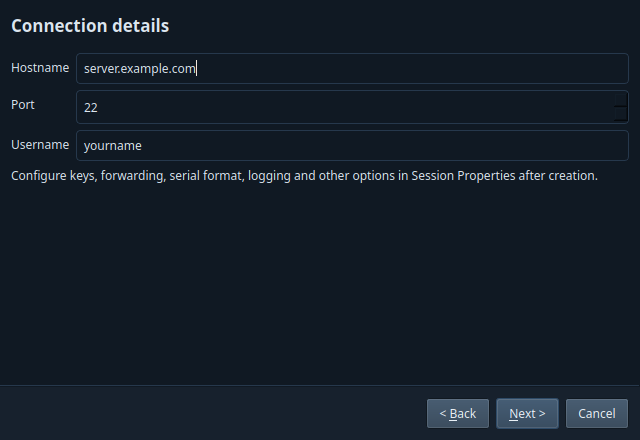
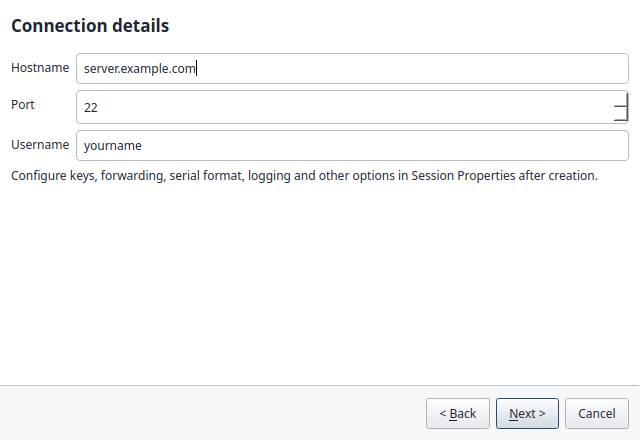
- Choose File → New session, select a protocol and enter the connection details.
- Give the session a name and save it. It appears in the Sessions pane.
- To open it later, double-click its name, or select it and choose File → Connect selected.
Select an entry and right-click for manual ordering or a desktop shortcut. Choose Tools → Manage button bars… to organise your saved actions.
If the pane is hidden, choose Edit → Go to Session Manager. Open Options → Session properties → Terminal → Appearance for the Choose colour… buttons.
Documentation
- Overview and quick start
- Installing, upgrading and troubleshooting
- Saved sessions, themes, button bars and backups
- BBS Directory
- File transfers and logging
- Python and Lua scripting
- Building from source
- Capabilities and release checks
Offline Markdown guides are available with the user guide, build instructions and scripting guide. The source package contains the complete specification and documentation.
Downloads
Version 0.6.0. Free downloads for 64-bit Windows and Linux.
Windows installer
64-bit Windows 10 or later. Installs for the current user and includes Qt, Lua, Python, libssh, FreeRDP and OpenSSH tools.
SHA-256 4a337f2770bf108bf2dad30a4d60ec864cb9efca388d0a66c1483df94217c82f
Windows portable ZIP
Extract and run LanternTerminal/lantern-terminal.exe. Includes the same application and runtimes.
SHA-256 91b21885868d2817885633c9c099f9c25af267e0706276a7493d071a27756a44
Linux Debian package
64-bit Linux with compatible dependencies. Built with Qt 6.10.2; apt checks required library versions.
SHA-256 2debafa56633e6ba42085ec06ccc383564a9e9fe8efe2e5cb99f602ac7932c2c
Linux tar archive
Extract and run usr/bin/lantern-terminal. Requires the same system libraries as the Debian package.
SHA-256 a235473b46b8c00bd624aee7ea777b2a53d5d6f202eda421ba3f031fee690665
Source code — tar.gz
C++ source, specifications, tests and easy Linux/Windows build scripts.
SHA-256 49634bee051611801c79a95756b1cfa0896fc2e7feea8240e8ad6f8ad1094005
Source code — ZIP
The same complete source package in ZIP format.
SHA-256 f69980127af64e9709a184ef4c83205921ba8303c8370feb90bb4d590b9ee040
SHA-256 checksums
Checksums for the release files and accompanying Markdown guides.
SHA-256 a793fedbf32e54ad5da772cae33638713274a10cc2ed3c6ec4be7006a272955e
To verify downloaded files, download SHA256SUMS to the same directory and run sha256sum -c SHA256SUMS --ignore-missing.
Bot scripts (experimental)
Experimental. These scripts were written for Kalgoorlie Retro BBS and are still being tested. They make real moves in your game, so watch the first runs and stop them if anything looks wrong.
Two door-game bots written in Lua. They were made for the SyncTERM-Lua fork and run unchanged in Lantern Terminal 0.3.3 or later, so the same files work in both programs.
LORD bot (experimental)
Plays one day of Legend of the Red Dragon 4.06: forest fights, master challenges, gear, the bard and Violet, bank and an Inn room.
SHA-256 debf1fe390d57be9a27f90a89bdd9ea1c4f4f7cfaf5cbf545ad2ef0b5f15c714
TradeWars bot (experimental)
Spends a day of TradeWars 2002 turns: maps the universe, trades between port pairs, haggles, and ends the day in FedSpace.
SHA-256 026ad918b4a0e5b3b76d4a870c9d6d2fda7cdbe7d463ccb02c8ac6a4f51cec28
Set up the BBS session once
- Choose Tools → New BBS session… and pick Telnet (or RLogin).
- Enter the BBS address and put your BBS user name in Username.
For a session you already have, right-click it in the Sessions pane and choose Apply BBS settings….
Run a bot
- Log in to the BBS and enter the game. Start the LORD bot at the "Enter the realm" menu or in the Town Square; start the TradeWars bot at the sector Command prompt.
- Choose Script → Run… and pick the script. Answer its questions; its progress appears in the Activity pane.
- Choose Script → Cancel to stop it at any time and carry on by hand. It also stops when the game exits or the BBS disconnects.
Each bot keeps its log, and the TradeWars bot its map of the universe, in the folder the script is in. Run one bot per character, and never for a character that another bot or player is using at the same time.
Release notes and scope
New in 0.6.0: the BBS Directory. Press the BBS Directory button on the toolbar (or Tools → BBS Directory…) and Update lists to download the Synchronet BBS List and the Telnet BBS Guide. Search for a BBS and connect to it in a tab with the BBS settings. BBSes you have used stay at the top under Recent, with the Kalgoorlie Retro BBS first. Add your own BBSes, and save any BBS as a session. Updating a list never changes the BBSes you have used or added. The Synchronet list comes from this website, refreshed daily with Telnet first, so most BBSes show their own login and new-user screens. See the BBS Directory guide.
Added in 0.5.0: the biggest update so far.
- SFTP Browser (F7): this computer and the server side by side. Copy files and folders either way, resume interrupted transfers, set permissions, and drop files on the window to upload them.
- Copy Public Key to Server, like
ssh-copy-id: puts your key on a server, sets the permissions SSH needs and checks that the key logs in. An SSH Agent window manages your agent's keys, including smartcards and tokens. - Remote Desktop (RDP) sessions in a tab on Windows and Linux: Network Level Authentication, the desktop fitted to the tab, keyboard, mouse, clipboard and Ctrl+Alt+Del. The server's certificate is checked like an SSH host key.
- Tear-off tabs: drag a tab out to give it its own window, and drag it back to dock it.
- Sync your sessions, folders, commands and button bars between computers through a shared folder (Nextcloud, Syncthing, Dropbox or a network share). Passwords and computer-specific settings stay where they are.
- Update notifications: Lantern tells you when a new version is out and can install it for you.
- Function keys for common actions (F1 lists them all); programs that need their own function keys can have them all back.
- The built-in SSH engine now does jump hosts, X11 and agent forwarding, Kerberos, Ed25519 certificates, most OpenSSH options and a FIPS-approved algorithms mode.
- Built-in Xmodem, Ymodem and Kermit transfers alongside Zmodem.
- Sixel images, 132-column mode, double-size lines, margins, and the Wyse 60 and SCO ANSI terminal types.
See the changelog for the details.
Added in 0.4.2: new BBS sessions are made with Tools → New BBS session…. The BBS tick-box has gone from File → New session, so the ordinary wizard is back to plain connection settings. Existing sessions are not changed.
Added in 0.4.1: Apply BBS settings to sessions you already have: right-click them, or a folder, in the Sessions pane, or use Options → Apply BBS settings to this session…. It sets the same options as a new BBS session and keeps everything else.
Added in 0.4.0: BBS support: BBS sessions with the CP437 character set, a DOS-style ANSI-BBS screen (bright bold, blinking text, iCE colours, CP437 symbols, ANSI music ignored), a built-in VGA font whose block and line characters join without gaps, and 80×25 scaled to the window. RLogin logs straight in, and its password can be kept in the system password store. Zmodem downloads start by themselves and uploads start when the BBS is ready, with progress and Cancel. Tools → Import BBS list (SyncTERM) brings in your SyncTERM dialling directory with a preview. See the sessions guide and transfers guide.
Added in 0.3.4: fixes a crash. Answering a script's message or question more than a minute after it appeared, such as a bot's "day finished" message, closed Lantern. Script messages and questions now wait for you however long you take. Nothing else has changed since 0.3.3.
Added in 0.3.3: scripts written for the SyncTERM-Lua fork run unchanged with Script → Run. Lantern provides SyncTERM's script functions, including PCRE2 regular expressions, triggers and the bbs table, so BBS bots and login scripts work in both programs. A new CP437 character encoding suits BBSes and door games. See the bot scripts below and the Lua guide.
Added in 0.3.2: SSH now runs in a built-in engine (libssh) by default. The status bar shows the cipher and key exchange actually negotiated; host-key, passphrase and password questions appear in the terminal; it uses your SSH agent, including the Windows OpenSSH agent, and supports local, remote and SOCKS port forwarding. Sessions that need options it does not know use OpenSSH automatically, and Session properties → Connection → SSH2 → SSH engine can choose OpenSSH for any session.
Ctrl+P, Ctrl+N, Ctrl+F, Ctrl+S, Ctrl+Q, Alt+letters and F1 now reach the terminal; Lantern's own shortcuts use Ctrl+Shift (Ctrl+Shift+F find, Ctrl+Shift+Q exit). Telnet supports binary mode for 8-bit and CP437 data, pasted line breaks are sent as Enter, settings import merges and lists anything that would run a program, and automatic reconnect no longer retries failed logins. Two crashes are fixed and drawing is several times faster. See the changelog.
Added in 0.3.1: opening another session preserves SSH tabs during connection and authentication. Live SSH sessions show as open, and authentication status recognises older Windows OpenSSH clients.
Added in 0.3.0: bundled Lua 5.4.9 scripting for Linux and Windows, with prompt capture, tabs, binary sends, logging, configuration and dialogs. Lua recordings, examples and a complete Lua guide are included.
Added in 0.2.1: SSH failures now display the actual reason. A server that accepts SSH keys only gives clear guidance for choosing an authorised private key. Accepting a server fingerprint is separate from logging in; saved server trust survives recreating a session.
Included since 0.2.0: readable session-wizard colours, immediate Options → Theme → System / Light / Dark selection, and a fix for Windows SSH failing to open its diagnostic logfile. This update also adds manual session/folder ordering, desktop session shortcuts, command cut/copy/paste, script arguments and named button bars with per-session selection.
All 17 test suites passed on Linux, including the new BBS Directory checks against a local web server and stand-in BBSes, and the BBS Directory of the Windows build was checked under Wine and on a real Windows PC. Earlier checks include the SSH tools against a test SSH server, Xmodem, Ymodem and Kermit against the standard lrzsz and G-Kermit programs, and RDP against FreeRDP's test server. The Windows build's RDP and SSH engine were checked under Wine. The Windows installer, bundled scripting, SSH engine, upgrade and uninstall checks passed under Wine, and the Windows SSH agent login was confirmed on a real Windows PC. Physical Windows ConPTY and device/provider testing remains outstanding. See release verification.
The current release includes the features listed above. Some legacy terminal and protocol compatibility, ANSI music playback and some advanced settings remain future work. RDP clipboard and resizing have not yet been tried against a real Windows server. Read the capabilities and limitations before choosing it for a particular workflow.
The Windows package includes libssh 0.11.3 with OpenSSL 3.5.9 and zlib 1.3.1 for the built-in SSH engine, FreeRDP 3.32.2 for Remote Desktop, Python 3.14.10 and Lua 5.4.9. For the OpenSSH engine and SFTP it uses system OpenSSH when available, with Microsoft OpenSSH 10.4.0.0p1 Preview as the bundled fallback. Linux uses the distribution's libssh, FreeRDP, OpenSSH and Python; Lua is bundled.
Source and licence
Written in C++17 with Qt, libvterm, libssh and Lua. First-party code is available under the MIT licence; bundled dependencies retain their own licences and notices. Both source archives include the specifications, tests, Linux shell scripts and Windows PowerShell build scripts.
Build instructions · MIT licence · Third-party notices
Questions and bug reports: slaterm@theiguru.au.